> ## Documentation Index
> Fetch the complete documentation index at: https://docs.communityx.in/llms.txt
> Use this file to discover all available pages before exploring further.
# Chapter team
> Invite team members and give them the right role in your communityX chapter.
Your chapter works best when every team member knows what they own. Use the **Team** area to add people, assign roles, and keep access up to date.
## What you need
You need access to the chapter's **Team** area. If you cannot see **Team** or **Add team member**, ask your chapter lead or communityX Community Manager for help.
## Before you add someone
Confirm these details before you send an invite:
* Their email address
* The role they will take on
* The responsibilities they will own
* The support person they can contact with questions
Only add people who are actively contributing to your chapter. Give them the least access they need to complete their responsibilities.
## Choose the right role
Select the role that matches the work the person will own. Before you send the invitation, confirm what that role allows them to do in the chapter workspace. If the responsibilities are unclear, agree on them with the chapter lead first.
## Add a team member
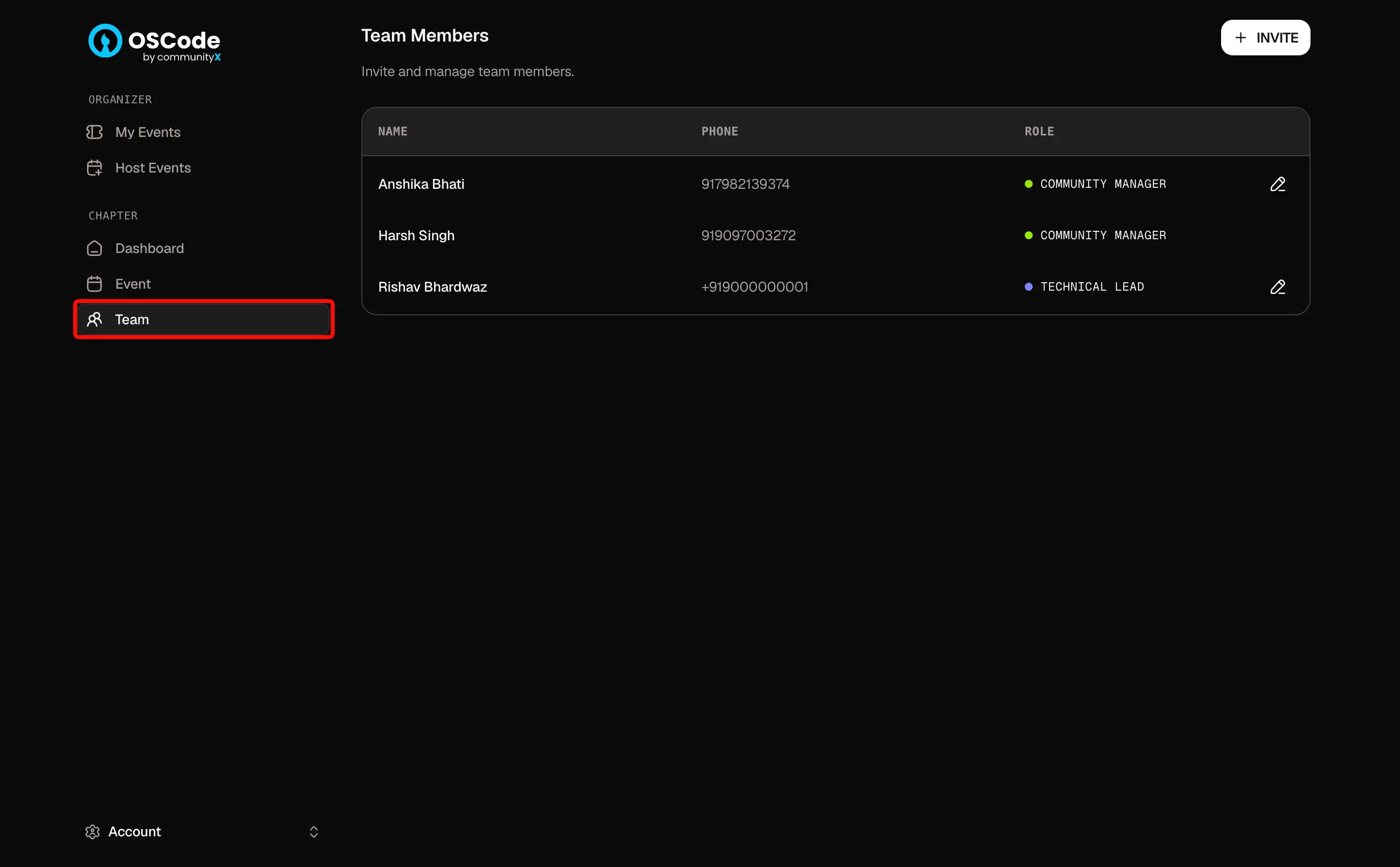
Sign in to the communityX dashboard. Open the chapter you lead, then go to **Team** from the sidebar.
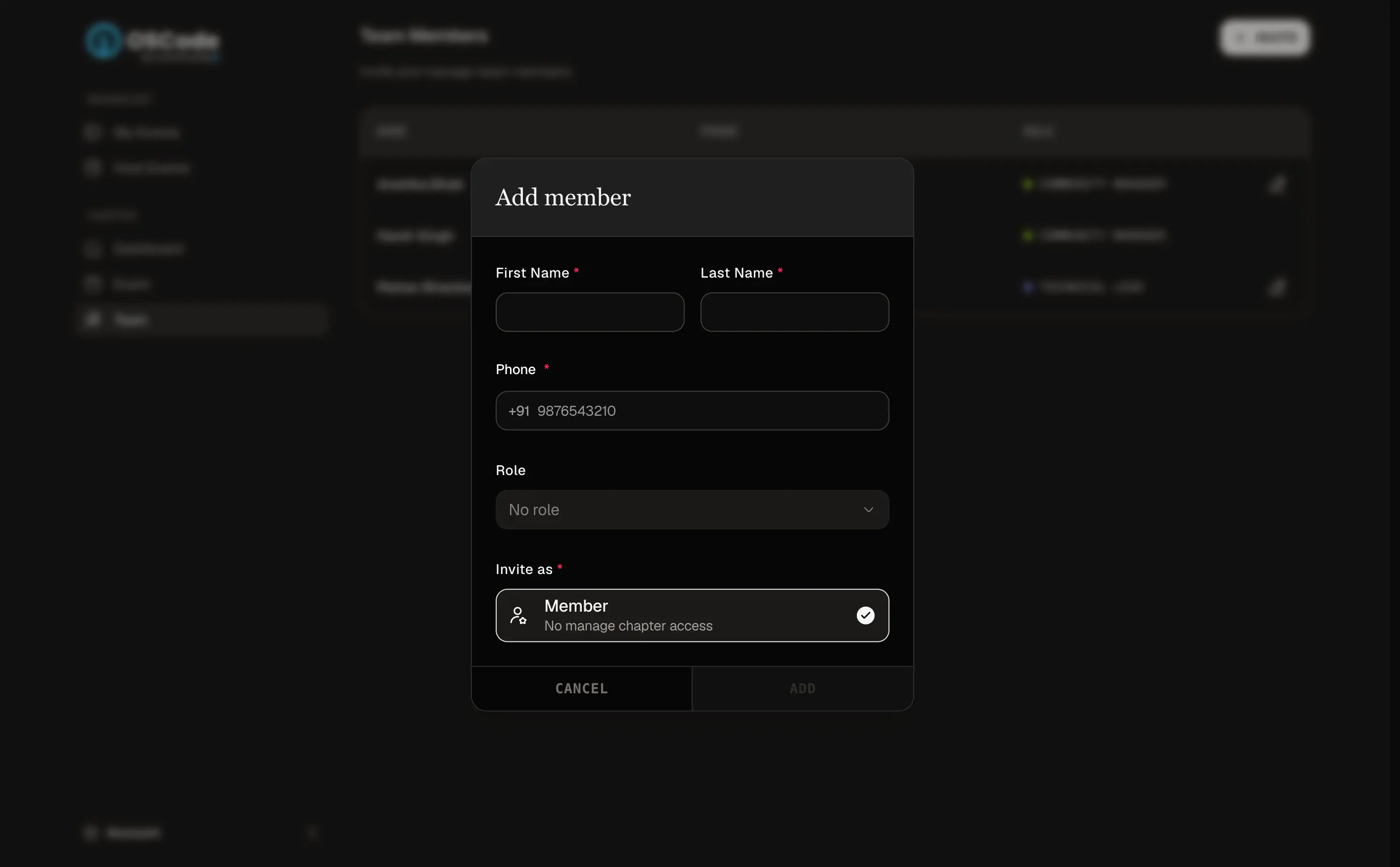
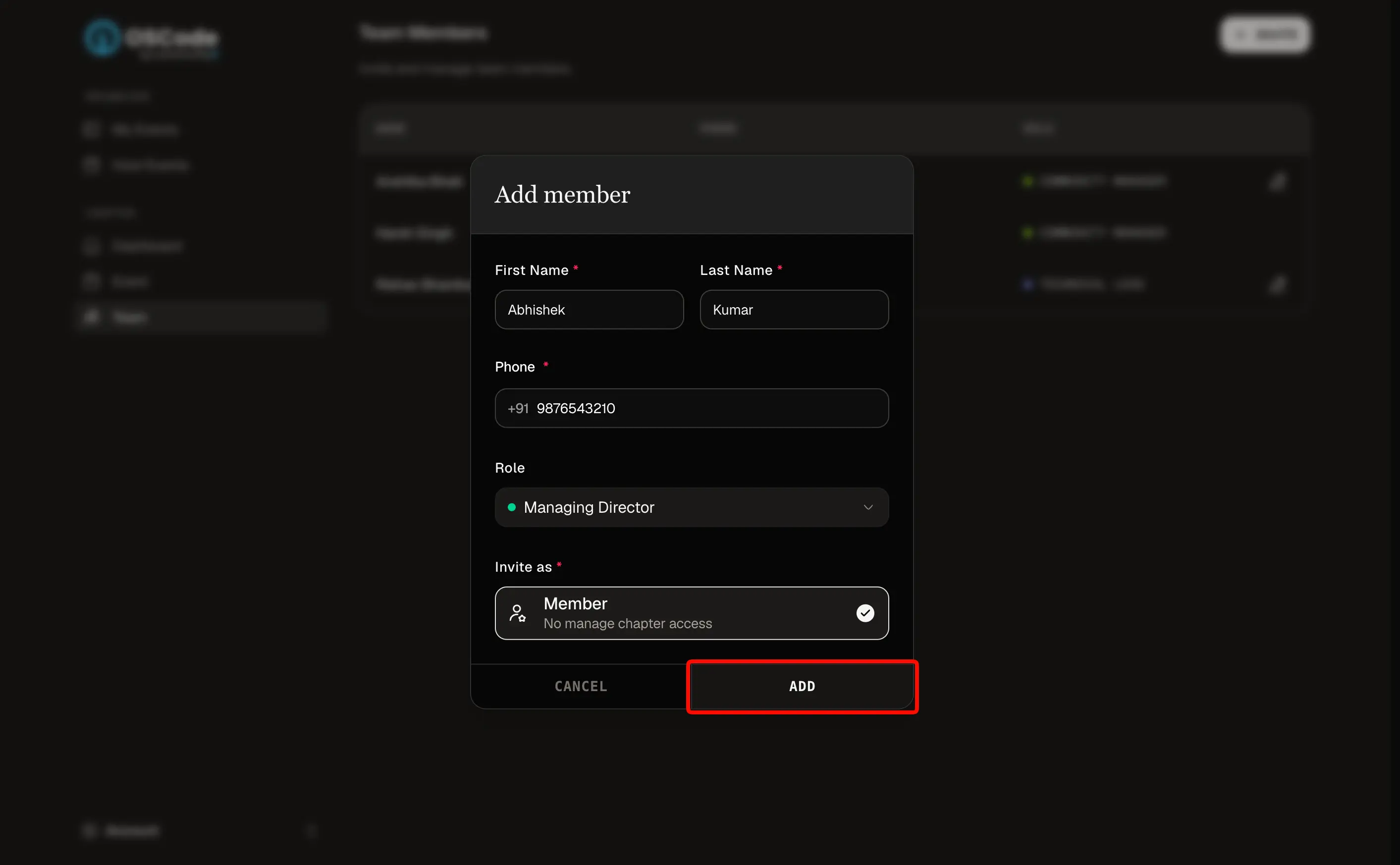
Select **Add team member**. Enter the person's email address and select the appropriate role, if prompted.
Review the email address and role, then send the invitation. Let the person know to check their inbox and accept the invite. Do not assume they have access until they accept it.
Return to **Team** after they accept. Confirm that their name and role appear correctly.
## Remove a team member
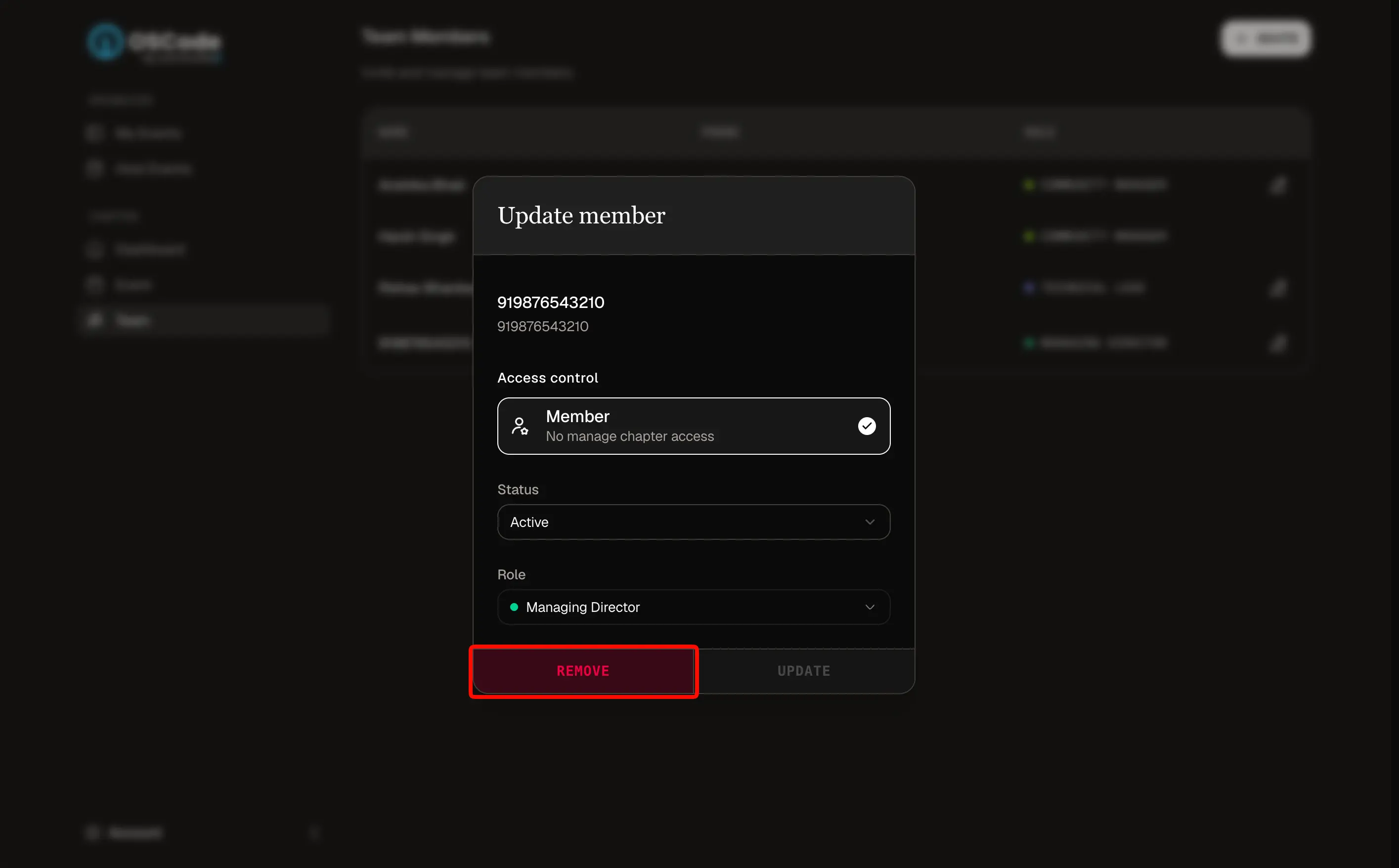
Remove a member when they leave the team or no longer need chapter access.
First, transfer their open tasks, event details, partner conversations, and shared files to another owner. Then remove their access from **Team** and any chapter communication channels. Check that the person no longer appears as an active member before you consider offboarding complete.
Removing someone from **Team** only changes access in the communityX chapter workspace. Remove their access from your chapter's other tools and communication channels separately.
## Troubleshooting
| Problem | What to check |
| ------------------------------------------ | ------------------------------------------------------------------------------------------------------------------------------------------------- |
| You cannot add a team member | Confirm that you are in the correct chapter and have access to **Team**. Ask the chapter lead or communityX support if the option is unavailable. |
| The invitation was not received | Check the email address, ask the person to check spam, then resend the invitation if that option is available. |
| The wrong person or role was added | Correct the role if the dashboard allows it. Otherwise, remove the member and send a new invitation with the right details. |
| A former member still has access elsewhere | Remove them from every chapter communication channel and shared workspace, not only **Team**. |